Adding Promotions Statements for Students
1. Click "Teachers"
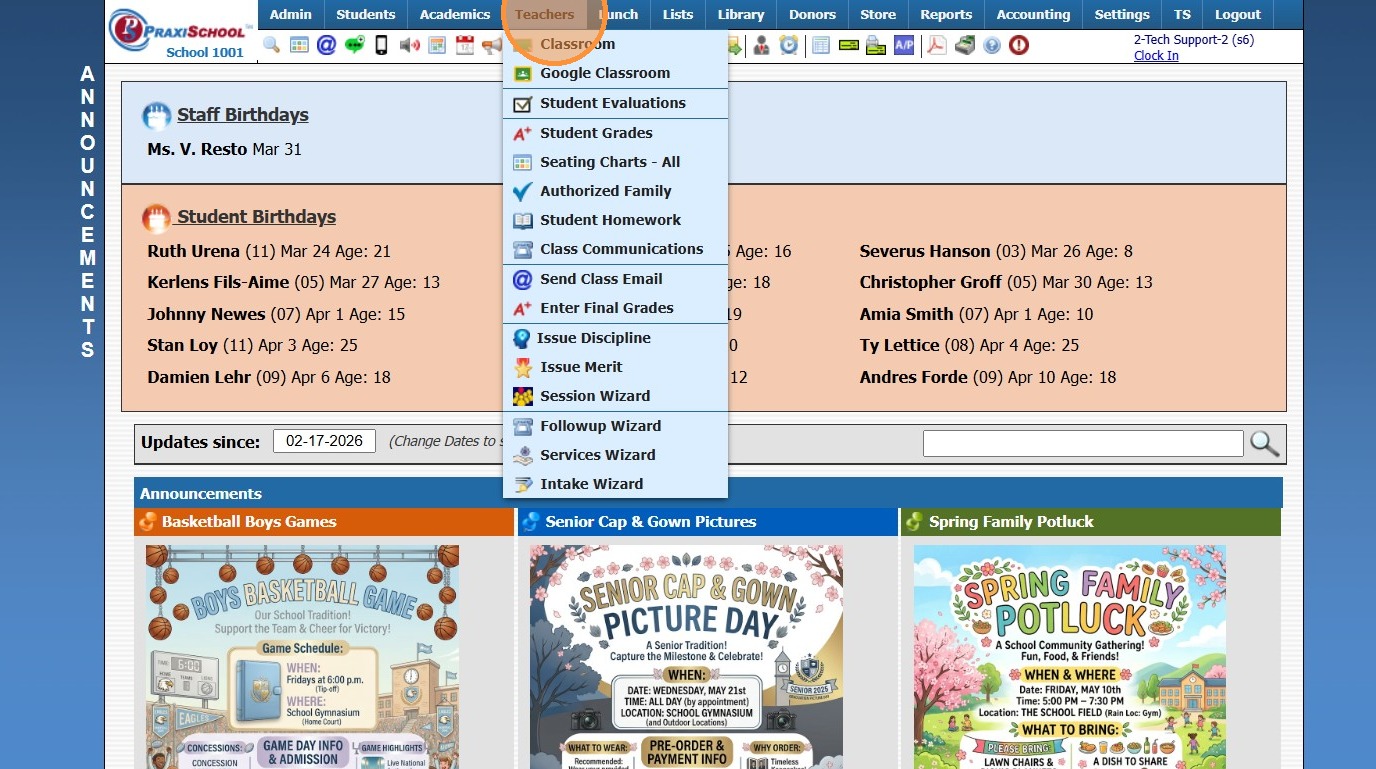
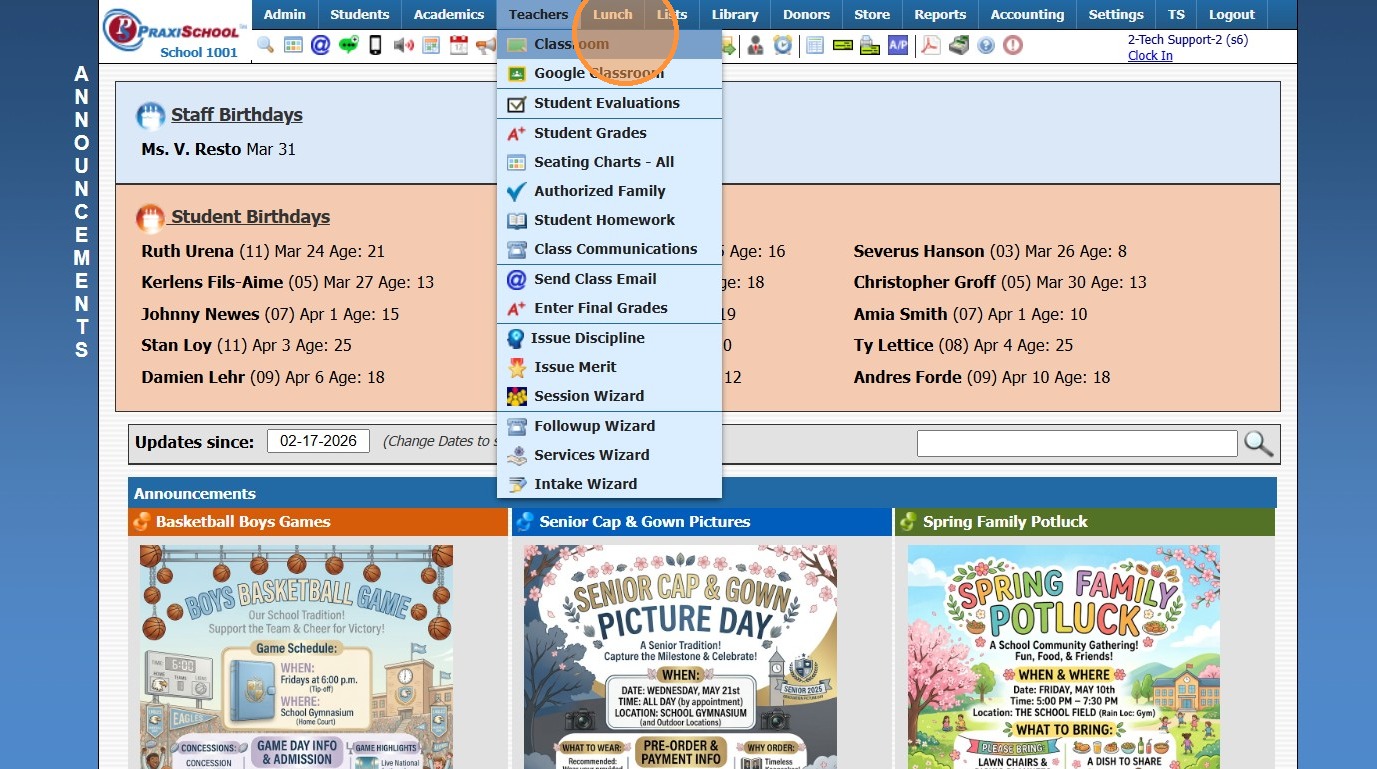
2. Click "Classroom"
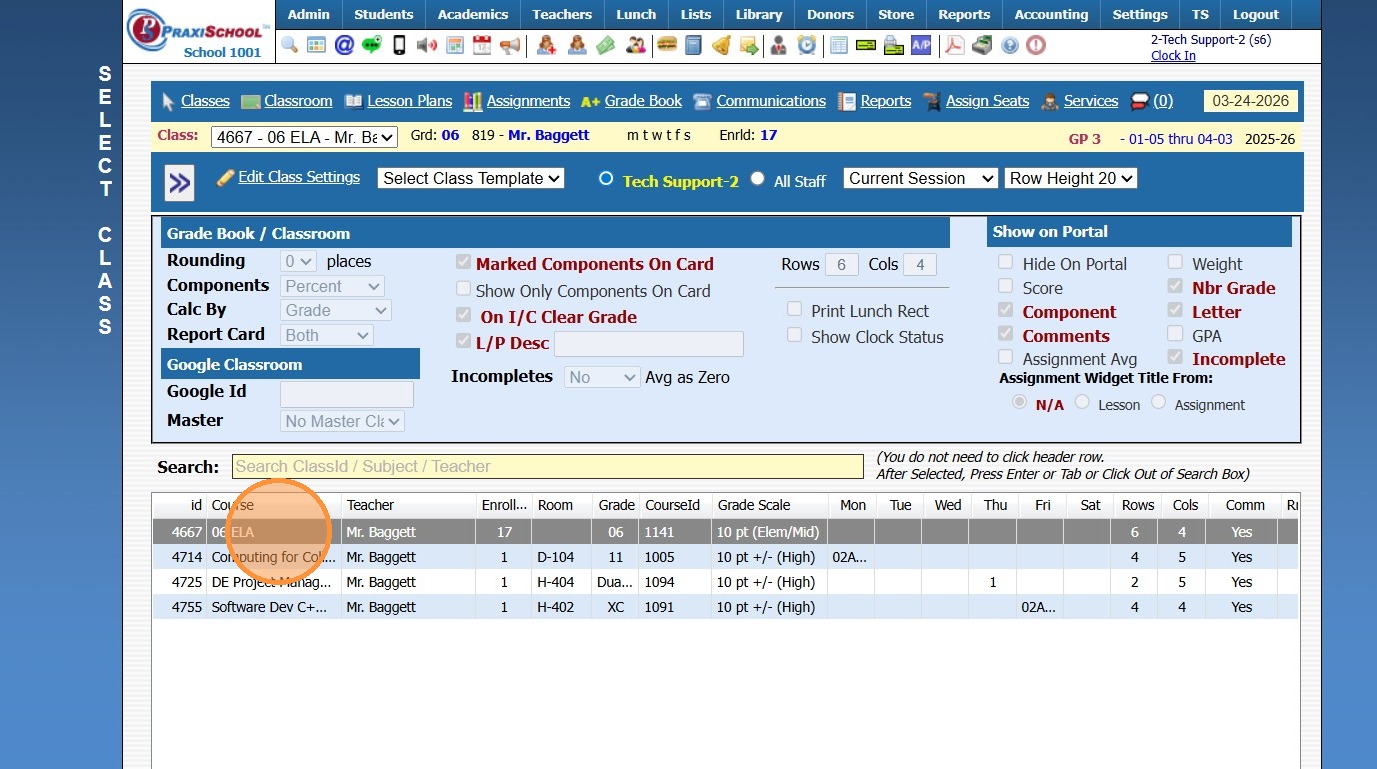
3. Select Class
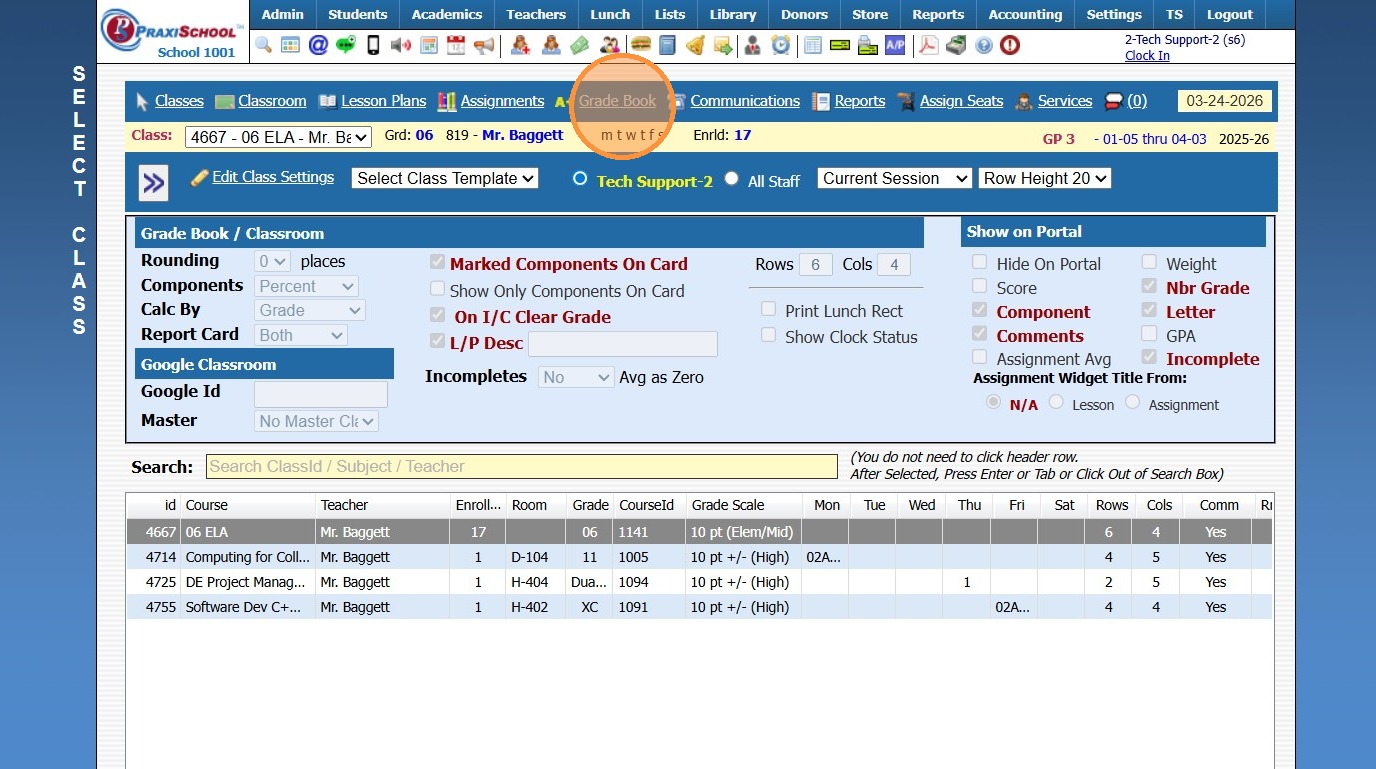
4. Click "Grade Book"
5. Click the "Detail" Toggle
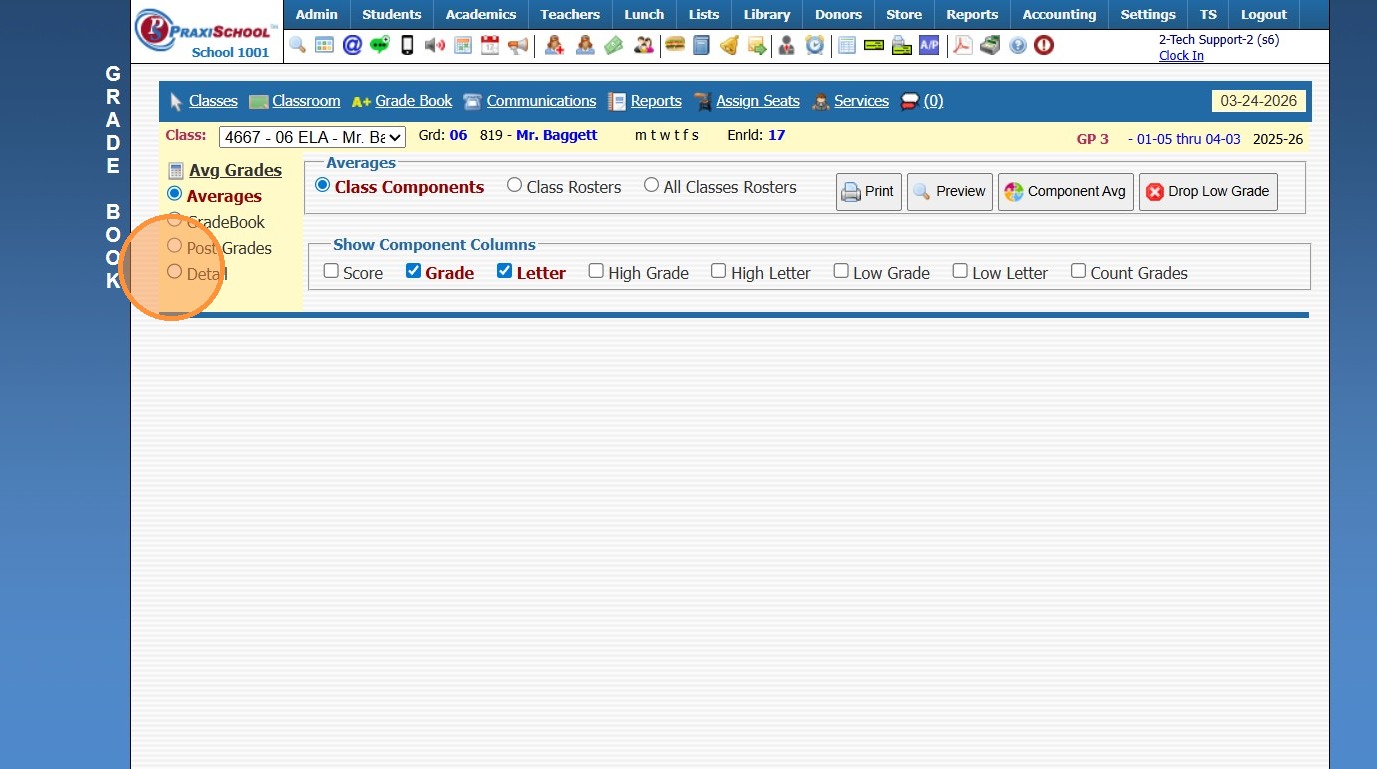
6. Select Student
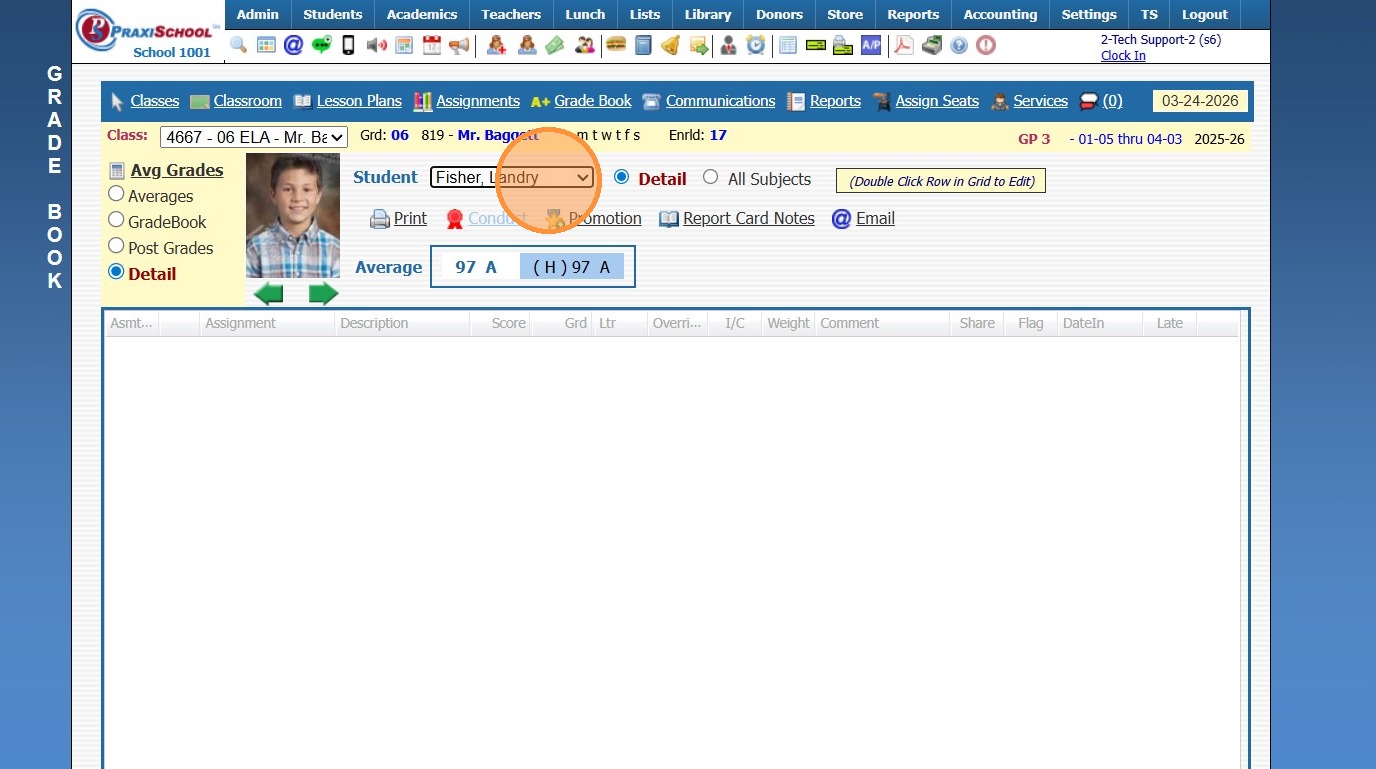
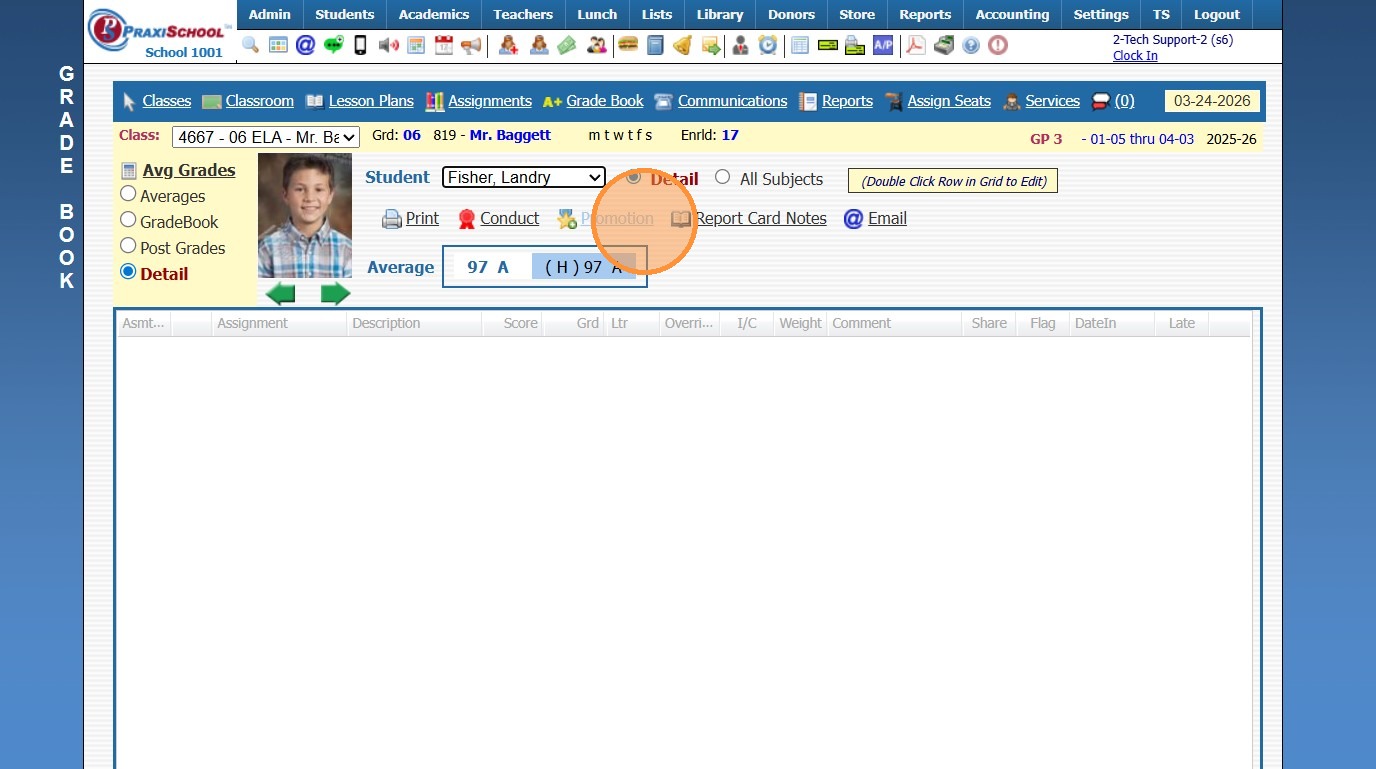
7. Click "Promotion"
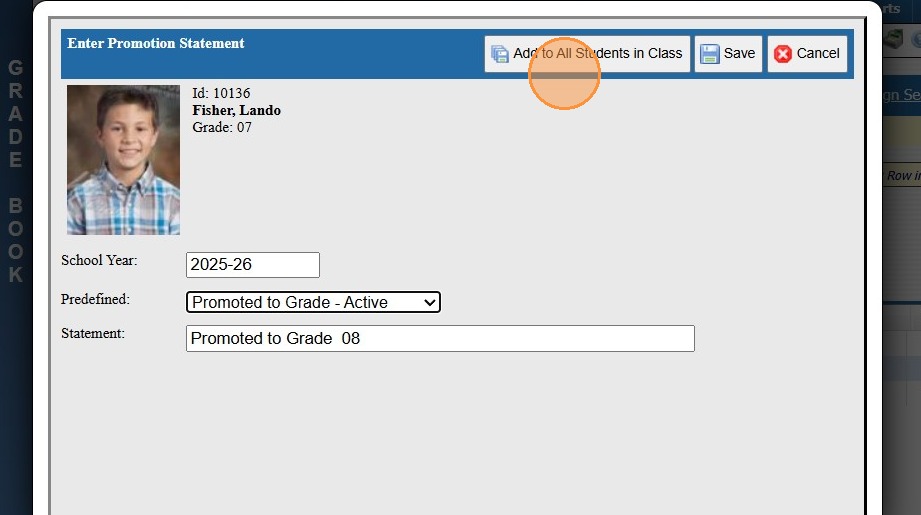
8. Select the Predefined Promotion Statement "Promoted to Grade - Active "
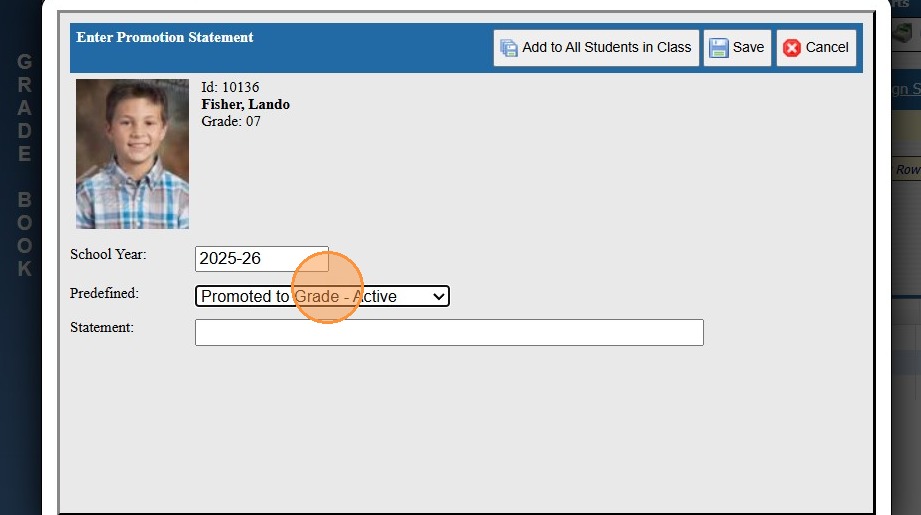
9. Click Save to Add for Selected Student OR Click Add to All Students in Class to Add in Batch
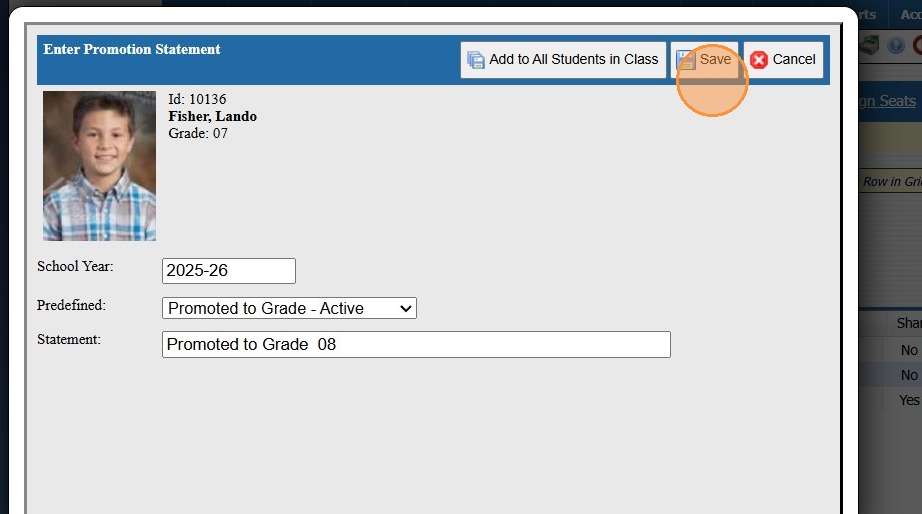
10. Click "Save"
2500.1.34
Related Articles
Adding Required Forms List to Students
Adding Required Forms List to Students 1. Click "Students" 2. Click "Students" 3. Select Student 4. Click "Forms" tab 5. Click "Add" 6. Select Form Template or Manually Tag Desired Forms 7. Click "Add Selected Forms" 1500.4.23Adding Students to the Donor File
Adding Students to the Donor File 1. Click "Students" 2. Click "Students" 3. Tag Students to Add to the Donor File 4. Click "Actions" 5. Click "Other Actions" 6. Click "Copy Tagged To Donors" 7. A Donor Type can be Selected from the Dropdown Menu OR ...Students: Adding Existing Family Member to Family Connections
Students: Adding Existing Family Member to Family Connections 1. Click "Students" 2. Click "Students" 3. Select Student 4. Click "Family" tab 5. Click "Add" 6. Search Family Member & Select 7. Click "OK" 8. Select the Relationship to Student 9. ...Adding PACES to Students in the Learning Center
Adding PACES to Students in the Learning Center 1. Click "Teachers" 2. Click "Classroom" 3. Select Learning Center Course in Grid 4. Click "Grade Book" 5. Search Student 6. Click on Class 7. Click "Add Paces" 8. Select PACES to Assign to Student 9. ...ADMIN: Adding Report Card Notes for Students without Existing Report Card Notes
ADMIN: Adding Report Card Notes for Students without Existing Report Card Notes 1. Click "Academics" 2. Click "Grades Support Files" 3. Click "Report Card Class Notes" 4. Click "Add" 5. Select Student 6. Select Class 7. Click "Notes" tab 8. Select ...