Update Parent Portal and Mobile App Access in Batch

2. Click "Accounts Receivable"


Assigning Parent Portal Access in Batch
4. Click "Update Portal Access"

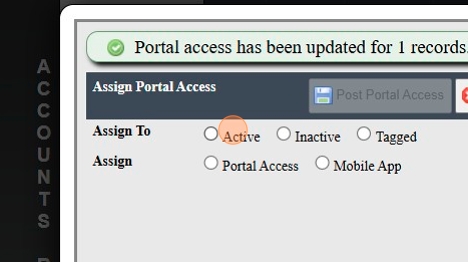
5. Click the "Active" field.

6. Click the "Portal Access" field.

7. Select the "Parent Portal" access option.

8. Click "Post Portal Access"

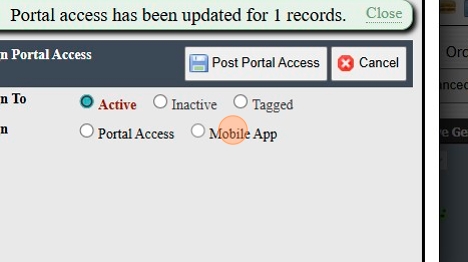
Assigning Mobile App Access in Batch

10. Click "Update Portal Access"


13. Click the "Set Mobile App" field.
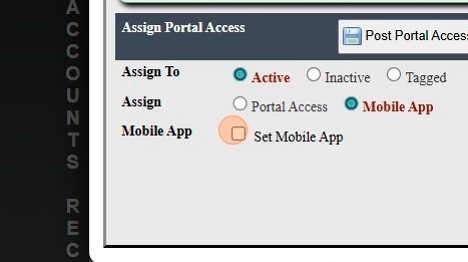
14. Click "Post Portal Access"

1000.1.21
Related Articles
Online Form Types and Portal Options
Online Form Types and Portal Options Online Form Types 1. Parent - A/R Portal (Forms for Existing Families, available on Parent Portal) 2. Student Portal (Forms for Existing Students, available on Student Portal) 3. From Your Website (Only new ...
Staff Directory Portal Options
Staff Directory Portal Options 1. Click "Reports" 2. Click "Staff Directory" 3. If Ignore Directory Preferences is not Selected, Options Selected by Administration and Selected by Staff will be visible on the Parent / Student Portal If Ignore ...
Student Directory Portal Options
Student Directory Portal Options 1. Click "Reports" 2. Click "Student Directory" 3. Select Sort & Filter Option 4. If Ignore Directory Preferences is not Selected, Options Selected by Administration and Selected by Parent / Student will be visible on ...
Accessing School Specific Portal Pages
Accessing School Specific Portal Pages 1. Click "Settings" 2. Click "School Settings" 3. Click "Portal" 4. School Specific Student Portal Link 5. School Specific Parent Portal Link 6. School Specific Applicant Portal Link 6500.2.88
Processing A/R Portal Changes
Processing A/R Portal Changes 1. Click "Admin" 2. Click "Tasks" 3. Click "A/R Portal Changes" 4. Click "Accept" to accept without Sending an Email and Update Highlighted fields 5. Click "Reject" to not Accept and NOT Update Highlighted fields 6. ...